
localhost:3000 Explained: What It Is and How to Share It
Learn what localhost:3000 means, why Node and React tools default to it, how to run or change the port, fix load errors, and share it over the internet.

Almost all JavaScript projects you’ve started in the last ten years have involved localhost:3000.
The first port of call for Next.js, Create React App, Express, and Ruby on Rails-this is where most
tutorials start you off from with a browser window. The number itself isn’t anything particular.
It’s just a port the dev server took, the one running on the web server you’ve set up in your own
machine.
This post explains the significance of the address, what led to port 3000 becoming the default for most modern frameworks, how to run an up-to-date (non-aging) server on it, and how to troubleshoot the few errors that prevent it from loading.
The final part tackles the step most guides overlook: securely exposing that private port with LocalXpose and making it accessible remotely by a teammate, a phone, or a webhook.
localhost:3000: Quick Overview
localhost is a special name for 127.0.0.1, also known as the loopback address, a name that
always points to your own computer. 3000 is the port that your development web server is listening
on. This means http://localhost:3000 is talking to the web server, which is running on this
machine, on port 3000. By default, it’s private to your device, so nobody else can get at that URL.
Each stack is similar in its workflow: fire up your dev server (auto-binding to port 3000), and load your page in a browser. Read on for why port 3000 triumphed in this popularity contest, how to run it on a modern machine, and how to access it from outside your laptop.
What localhost:3000 Actually Means
The address: http://localhost:3000/ divides three selectable components. First is the host.
localhost points to a loopback address, either IPv4 127.0.0.1 or IPv6 ::1. Any requests to a
loopback address will never reach your network card, your router, or the Internet at large. On your
machine, this means your machine is simply the client creating a request and the server taking the
request. This is also why your coworker can’t just hop onto your localhost:3000 from their own
seat.
Secondly, the port. One machine can run many programs at the same time. Each machine, therefore, can have its own numbered “slot” between 0 and 65535. If your server is on 3000 and you request a 3001, you will get nothing in return. This occurs because there is no process listening on 3001.
Third is the protocol. The http prefix tells your browser to use plain HTTP. Nowadays, the majority
of dev servers fire up HTTP locally because there’s no need to configure any certificate; however,
there are many modern tools that will automatically fire up https://localhost:3000 if you give
them a local certificate.
Why Port 3000 Became the Default
Port 3000 has no official definition. No standards body has defined it like 80 for HTTP or 443 for HTTPS. It just became a convention: the first popular tool used it, then the next tool simulated it so as not to confuse users. And so forth.
First up is the Ruby on Rails trail.
In the early days, Rails, when run using its development server, would automatically suggest port 3000, and for many years in the late 2000s, GitHub, Twitter, and then many other startups used Rails as the place most web developers learnt to run a local server. When Node.js and Express arrived, their “Hello World” code used 3000, too, owing to familiarity, and also since the port is above the privileged range of ports that need admin/root access.
Create React App then baked 3000 in as the default, and Next.js shortly after. By the time current programmers came to light, 3000 was only called “the React/Node port” (even though it’s derived from Rails).
The pragmatic effect is that 3000 is obscenely congested. This same number is used as a default in a handful of other, quite separate programs, so, you risk locking conflicts by launching two web frameworks together.
What Runs on Port 3000
JavaScript and Ruby are the common culprits.
Make sure you note one important exception that has caught people out: Vite, which is popular with
most recent React, Vue, and Svelte projects, doesn’t use 3000. It just defaults to 5173. So the
React-equals-3000 instinct is more and more an artifact of the Create React App era than a
description of how newer projects should be initialized.
| Tool | Default port | Type |
|---|---|---|
| Next.js | 3000 | React framework |
| Create React App | 3000 | React (deprecated) |
| React Router v7 | 3000 | React framework |
| Express | 3000 (convention) | Node.js |
| NestJS | 3000 | Node.js |
| Fastify | 3000 (convention) | Node.js |
| Ruby on Rails | 3000 | Ruby |
| Vite | 5173 | Build tool |
| Grafana | 3000 | Monitoring |
| Storybook | 6006 | UI workshop |
Neither Express nor Fastify has any strict default. Their servers run on any port you pass to
listen, and the ecosystem settled on 3000 by habit.
The collisions worth remembering: Grafana claims 3000, so running a Next.js app + a local Grafana instance at the same time will always clash, and anything on Vite falls back on 5173.
The takeaway is that if you start a Node or Rails project without specifying a port, expect it to grab 3000, and expect to occasionally fight another tool for it.
How to Start a Server on localhost:3000 (Current, Not Deprecated)
Just one command or one line of configuration is needed for most stacks. Below are the current paths, with a note where some old instructions are now out of date.
A brief but significant note before we get started. On February 14, 2025, the React team officially
deprecated Create React App for new
projects and directed new users to frameworks such as Next.js and React Router or build tools such
as Vite. Many of the older tutorials still start by npx create-react-app & npm start. This path
is still running in maintenance mode. However, it is no longer the preferred way to launch a React
application; thus, the examples below use the path that the React developers actually suggest:
Next.js
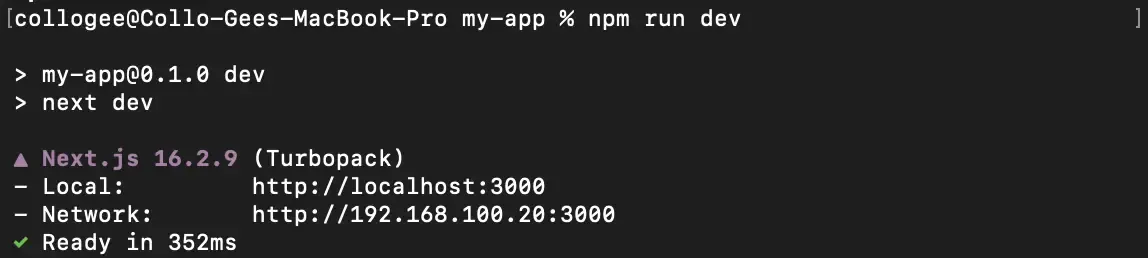
Next.js runs on 3000 out of the box.
npx create-next-app@latest my-app
cd my-app
npm run dev
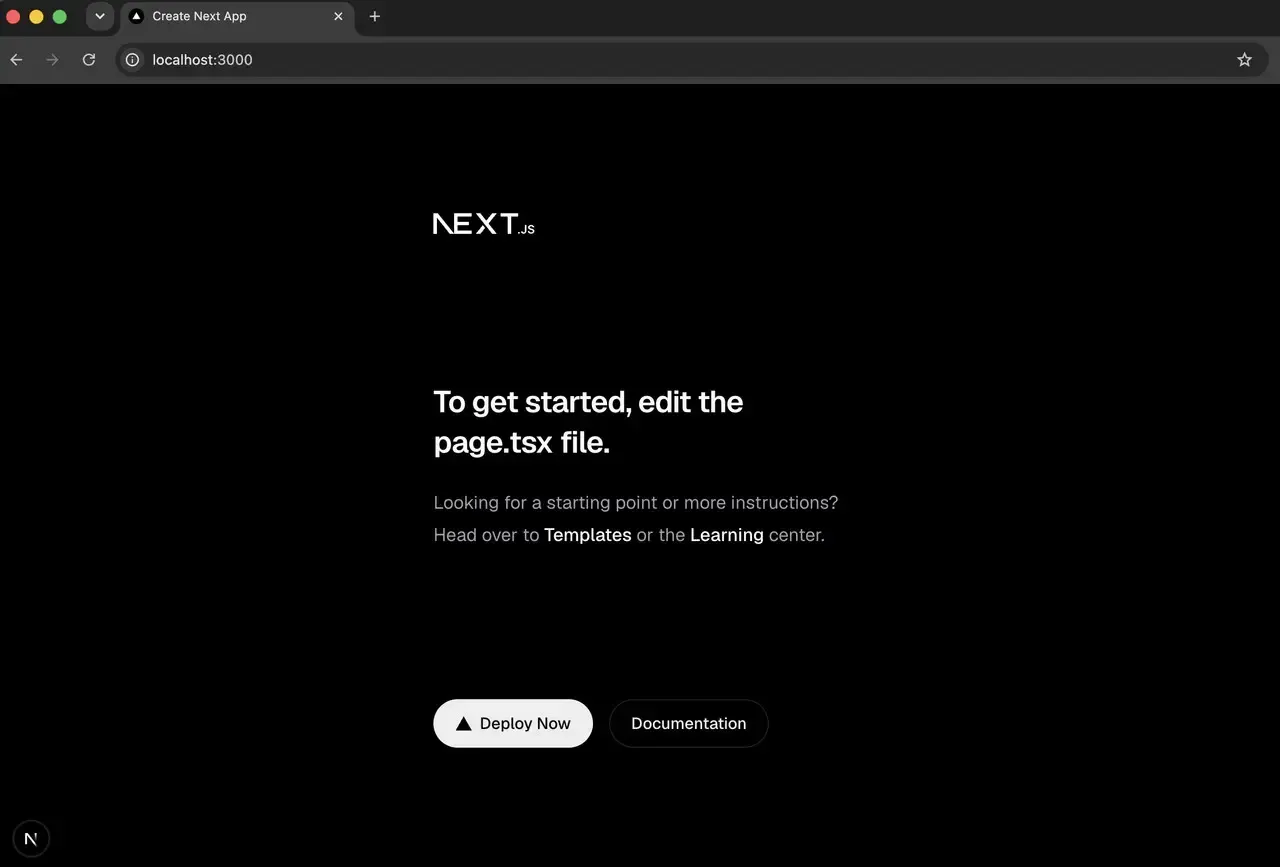
npm run dev launches the Next.js development server with hot reloading on http://localhost:3000.
No port configuration is required.
React with Vite
Vite is the current replacement for Create React App.
npm create vite@latest my-app -- --template react
cd my-app
npm install
npm run dev
This is what scaffolds a new React project and launches the Vite dev server. By default, Vite runs
on http://localhost:5173, not 3000. If you’re used to that, or a colleague is, you can change that
by updating the port in vite.config.js (covered in the next section).
Express/Node.js
Express has no default port, so you will instruct it on which one to bind to.
const express = require('express');
const app = express();

app.get('/', (req, res) => res.send('Hello from port 3000'));

app.listen(3000, () => {
  console.log('Listening on http://localhost:3000');
});
app.listen(3000, ...) binds the server to port 3000 and runs the callback once it is ready. Run
the file with node server.js, and the app answers on http://localhost:3000.
Ruby on Rails
rails serverrails server (or the short rails s) launches the development server on http://localhost:3000.
To run it on a different port, pass -p, for example, rails server -p 3001.
How to Set or Change the Port Permanently
You can use port 3001 for a single use case, but for a long-term solution, configure the port in a configuration file, which all your team members will have in sync and which works after each restart. This depends on the stack.
For Next.js, pass the port to the dev and start scripts in package.json:
"scripts": {
  "dev": "next dev -p 4000",
  "start": "next start -p 4000"
}
This forces both the development and production servers to run on port 4000 rather than 3000.
For Vite, set it in vite.config.js:
import { defineConfig } from 'vite';

export default defineConfig({
  server: {
    port: 3000,
    strictPort: true,
  },
});
port specifies the port, and strictPort: true tells Vite to error loudly if the port already
exists, rather than silently falling back to 5174 and leaving you scratching your head about where
your app went.
The portable way for Node, Express, and most frameworks is to read the PORT environment variable
at startup:
PORT=4000 npm run devIf your code reads process.env.PORT (app.listen(process.env.PORT || 3000)) then that’s also what
the majority of hosting sites look for, so get it sorted in early.
Why localhost:3000 Will Not Load (and How to Fix It)
Most of your screen will be blank or you will see a “connection refused”, or an error message in the address bar.
Here are the usual reasons and what they actually mean.
The first one is connection refused. Most of the time meaning nothing is listening on 3000. Your server failed to start, crashed with a code error, or appeared on an unexpected port. Check the terminal where you started it for error back-traces, make sure the process hasn’t exited, and glance over startup logs to see if the port is actually chosen. The connection refused error is actually a “nobody home” page, not a permissions issue or a firewall problem.
Second is the port being already in use, which Node will surface as EADDRINUSE. Something else is
already using 3000, so your new server will not be able to bind. The solution is to either kill/stop
the other process or relocate your server to an available port.
The third is a 404 error. A 404 is actually what you wanted to see in the first place: it means the server responded, so it’s up and at least serving that URL.
When localhost:3000/login, /admin, /api, or /docs returns 404
Loading localhost:3000 is successful, but when you try to open localhost:3000/login or
localhost:3000/admin, it gives you 404. Often, it’s not a broken server, but rather just routing
implementation in your stack that causes these 404 errors.
In a client-side React app, you have routes such as /login only within the router in your
JavaScript, once the app has loaded. In addition, the dev server knows that it should serve up the
app at /, but it doesn’t know what to do when someone makes a direct request to /login unless it
is configured to fallback to index.html. Third-party framework servers with arbitrary routers have
yet another set of rules: a Next.js /admin route must have a file or route defined that matches
it, and an /api/... route actually has to exist as an API route.
If /docs 404s, verify that you’re mounting your docs tool at a base path you haven’t included. The
pattern to learn: a 404 on a specific path indicates the server is running, but the path is missing
or mismatched, so check that the route exists and you are requesting the real path the framework
serves.
Another common problem is a CORS error, when your frontend running on one port calls an API on
another port. When your React app localhost:3000 requests to an API on localhost:8080, even
though the hostname is the same, the browser considers it as cross origin request as the port number
is part of the origin. The solution is to send the correct Access-Control-Allow-Origin header from
the API for your front-end origin or use your dev server proxy to reverse proxy the API calls so
they appear same-origin from the browser.
Find and free port 3000
Whatever is running on 3000, find its process ID first, then stop it.
On Linux:
ss -ltnp | grep :3000
# or
sudo lsof -i :3000
On macOS:
lsof -nP -iTCP:3000 -sTCP:LISTENOn Windows (PowerShell or Command Prompt):
netstat -ano | findstr :3000Each of these commands show the process ID (PID) binding the port. To free it, stop that process.
On Linux and macOS:
kill -9 <PID>On Windows:
taskkill /PID <PID> /FRestart your server, and localhost:3000 should load.
Why localhost:3000 Only Works on Your Machine (and How to Share It)
Everything mentioned in this guide so far keeps localhost:3000 private, which is exactly what
loopback does. This is where the problems begin, as soon as you need to have another person or
service access it, for example, for testing on a different device, for showing a live preview to
your client, or to allow Stripe or some other API to call a webhook to your local server. None of
that can locate 127.0.0.1 on your machine, though, because on whatever device is asking,
127.0.0.1 resolves to that device itself, not yours.
The approach is dependent on how far the traffic has to travel.
Reaching it from a device on the same network
Should the other device be on your network, two variations are possible. First, bind the server to
0.0.0.0. So this binds to every interface (including LAN IP), rather than localhost 127.0.0.1.
Many tools that have a flag for this, npm run dev -- --host for Vite or next dev -H 0.0.0.0 for
Next.js. Second, enable port 3000 on the firewall of your operating system. Then, on the different
device, navigate to http://YOUR-LAN-IP:3000. This is also all you need to
use your local network remotely to quickly test devices on
the same Wi-Fi.
Sharing over the internet with a tunnel
LAN binding instantly no longer works if the other party isn’t on your network, be it a client across town, a coworker at home, or some outsider’s webhook. Opening all the different router ports for each is a fragile security nightmare. A tunnel does it clean by making your local port available under a public URL without messing with your network setup.
This is exactly the kind of job LocalXpose,
a stable local tunnel, is designed for. So you keep firing up
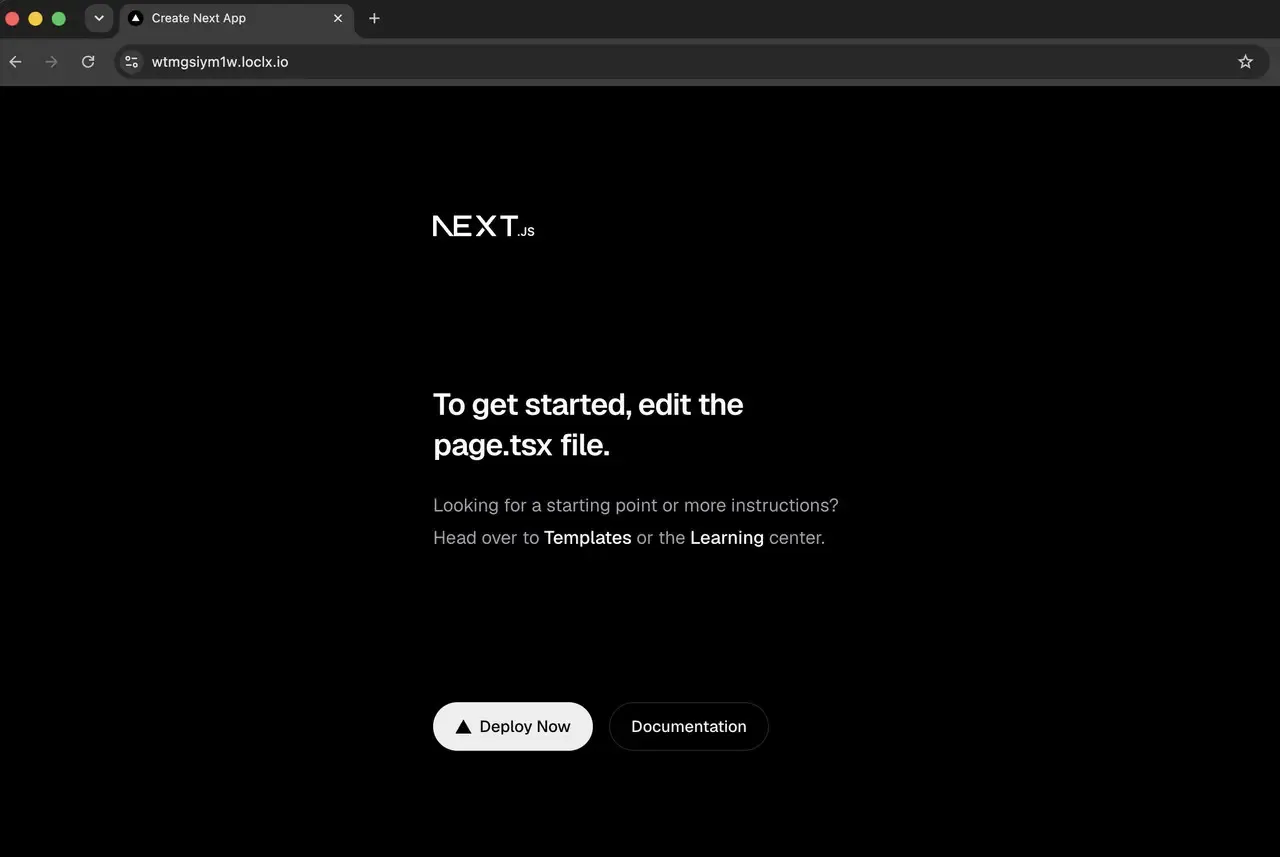
your server on localhost:3000, and LocalXpose will give you a public HTTPS URL which will be
tunneled directly to your server.
Install the client, then start a tunnel:
# install
npm install -g loclx

# expose port 3000
loclx tunnel http --to localhost:3000
The command returns a public address that forwards to your local server:
=> https://abc12345.loclx.io (online)Any user who visits that URL, whatever device they’ve got, whatever operating system they’re running, whatever browser they’re using, will access your running app. For a memorable, repeatable address as opposed to a random one, reserve a subdomain:
loclx tunnel http --to localhost:3000 --subdomain myapp
# => https://myapp.loclx.io (online)
A reserved subdomain provides a permanent URL across reboots, enabling you to
test webhooks locally easily: you only register your
URL:https://myapp.loclx.io/webhooks with Stripe or GitHub once, and never have to re-paste it
again. If the preview should not be public, add basic auth:
loclx tunnel http --to localhost:3000 --basic-auth user:passThis puts a login window in front of the tunnel, so a shared client preview isn’t available to anyone who guesses the URL. The detailed step-by-step is in the article on how to expose a local server to the internet, and that entire method is what turns LocalXpose into a tunneling service when you need it running beyond quick tests.

Where LocalXpose fits, and where it does not
The free Starter plan from LocalXpose supports two live HTTP/HTTPS tunnels with SSL, plus individual subdomains, but with session time limitations and a confirmation page, it’s mostly something you want for personal testing, not a professional demo to a client. The Pro plan, at only $8/month, elevates you to 10 tunnels across all protocols (HTTP/S, TCP, TLS, UDP), custom domains, automatic certificates, and no bandwidth limits.
LocalXpose is also a managed, closed-source service, so if you need a self-hosted tunnel that runs on your own hardware, then again, this isn’t it. The advantage here is that you get a public HTTPS URL that is reliable (with one command) and stable subdomains for your webhooks; if you want to compare that to alternatives, the comparison of LocalTunnel vs ngrok vs LocalXpose gives an idea.
An authentic constraint: a tunnel solves reachability. Does not resolve a conflict over a port, a
server crash, or a 404. Getting a blank page at localhost:3000 on your own machine? tackle the
troubleshooting items first, then, when everything is running on the local server, get a tunnel.
Frequently Asked Questions
What is localhost:3000 in simple terms?
It is a web server running on your own machine, so localhost is your machine, and 127.0.0.1 and
3000 is the port that the server is listening on. Can only be opened by yourself by default,
unless you deliberately expose it.
Why do so many frameworks default to port 3000?
Ruby on Rails made it the default for development-server express, then Node and Express grabbed a hold of it. Now that default has trickled down into the React-ecosystem with Create React App and Next.js. Since the port sits above the privileged port range requiring root or admin rights, it became a convenient, safe choice that turned into a convention.
How do I fix “port 3000 is already in use”?
Figure out which process has it and kill it. On Linux, run sudo lsof -i :3000, on macOS run
lsof -nP -iTCP:3000 -sTCP:LISTEN, and on Windows run netstat -ano | findstr :3000, after that
you should have the PID. Then, in Linux and macOS, run kill -9 <PID> and in Windows run
taskkill /PID <PID> /F Otherwise, run your server on a different port.
Why can’t I open localhost:3000 on my phone or another device?
Because localhost is the machine where the request is being made from, and a server listening on
127.0.0.1 only listens to its own machine. If you want to access it from a different device on the
same network, bind to 0.0.0.0 and open the firewall, then access it through your computer’s LAN
IP. Using a tunnel allows you to provide this port with a public URL that is accessible from
anywhere.
Is localhost:3000 the same as 127.0.0.1:3000?
In practice, yes. localhost points to 127.0.0.1(the name for the local machine’s loopback
address; the equivalent for IPv6 would be ::1). So, both point your browser to the same local
server. The only distinctions that can be observed are in edge cases, i.e., IPv4-versus-IPv6
resolution or in a custom hosts-file entry.
How do I change my dev server off port 3000?
Set it globally in your configs instead of command-line arguments. Use, for example,
next dev -p 4000 in your Next.js scripts, server.port in ‘vite.config.js’, or the PORT
environment variable in Node and Express. Pinning it in config keeps every teammate and every
restart on the same port.
Conclusion
localhost:3000 is a web server on your own machine. A recognizable set of frameworks defaults to
it, and starting one on a current stack is a command or a line of config. The load errors lead you
to a small set of culprits you can now diagnose, including route-level 404s specific to how modern
routers work.
When the server is ready, and it needs to be accessed outside your machine, start on the LAN by
binding to 0.0.0.0, and use a tunnel if the server has to be accessed over the internet.
LocalXpose handles that step for you with a single command and a stable
public URL pointed straight at port 3000.
